Get Bonjourr up and running on your browser with setup guides and instructions for desktop and mobile browsers.
Это содержимое пока не доступно на вашем языке.


Using Bonjourr on Chrome
Section titled “Using Bonjourr on Chrome”⚠️ Chrome adds a footer to all extension-based new tabs by default. It isn’t part of Bonjourr, and can be removed by right-clicking for a much cleaner experience:
Other desktop browsers
Section titled “Other desktop browsers”✅ Brave
Section titled “✅ Brave”Being a Chromium-based browser, Brave has the ability to install any Chrome extension. You can download Bonjourr and start using it right away.
✅ Safari (macOS)
Section titled “✅ Safari (macOS)”Bonjourr can be installed on Safari for macOS in just a few seconds:
-
Hit Cmd + Comma and open the “General” tab
Open Safari’s preferences
Section titled “Open Safari’s preferences” -
Set “New windows open with” and “New tabs open with” to “Homepage”.
Switch to Homepage
Section titled “Switch to Homepage” -
Set the Homepage text area to:
Set your homepage
Section titled “Set your homepage”https://online.bonjourr.fr
Video walkthrough:
Zen is based on Firefox, which means you can install any Firefox extension on it, including Bonjourr. Zen requires a couple of extra settings before Bonjourr fully replaces new tabs.
-
Set Bonjourr as your homepage and new tab
Section titled “Set Bonjourr as your homepage and new tab”Open Zen’s settings and make sure Bonjourr is selected for both Homepage and new windows and New tabs.
-
Disable Zen’s custom new tab
Section titled “Disable Zen’s custom new tab”Open
about:config, click Accept the risk, then search forzen.urlbar.replace-newtab. Set its value tofalseusing the toggle button on the right. This ensures Bonjourr is shown whenever you open a new tab. -
(Optional) Add Bonjourr to Essentials
Section titled “(Optional) Add Bonjourr to Essentials”Open a Bonjourr tab, then click Add to Essentials. This keeps Bonjourr easily accessible from Zen’s sidebar.
Video walkthrough:
✅ Vivaldi
Section titled “✅ Vivaldi”Vivaldi’s support for new tab page extensions has improved significantly in recent releases. Once Bonjourr is installed from the Chrome Web Store, you’ll need to change two settings:
-
Look for the “Startup with” section and check the “Specific Pages” box. Then, copy this into the Startup Pages text input before hitting Add:
General tab
Section titled “General tab”chrome-extension://dlnejlppicbjfcfcedcflplfjajinajd/index.html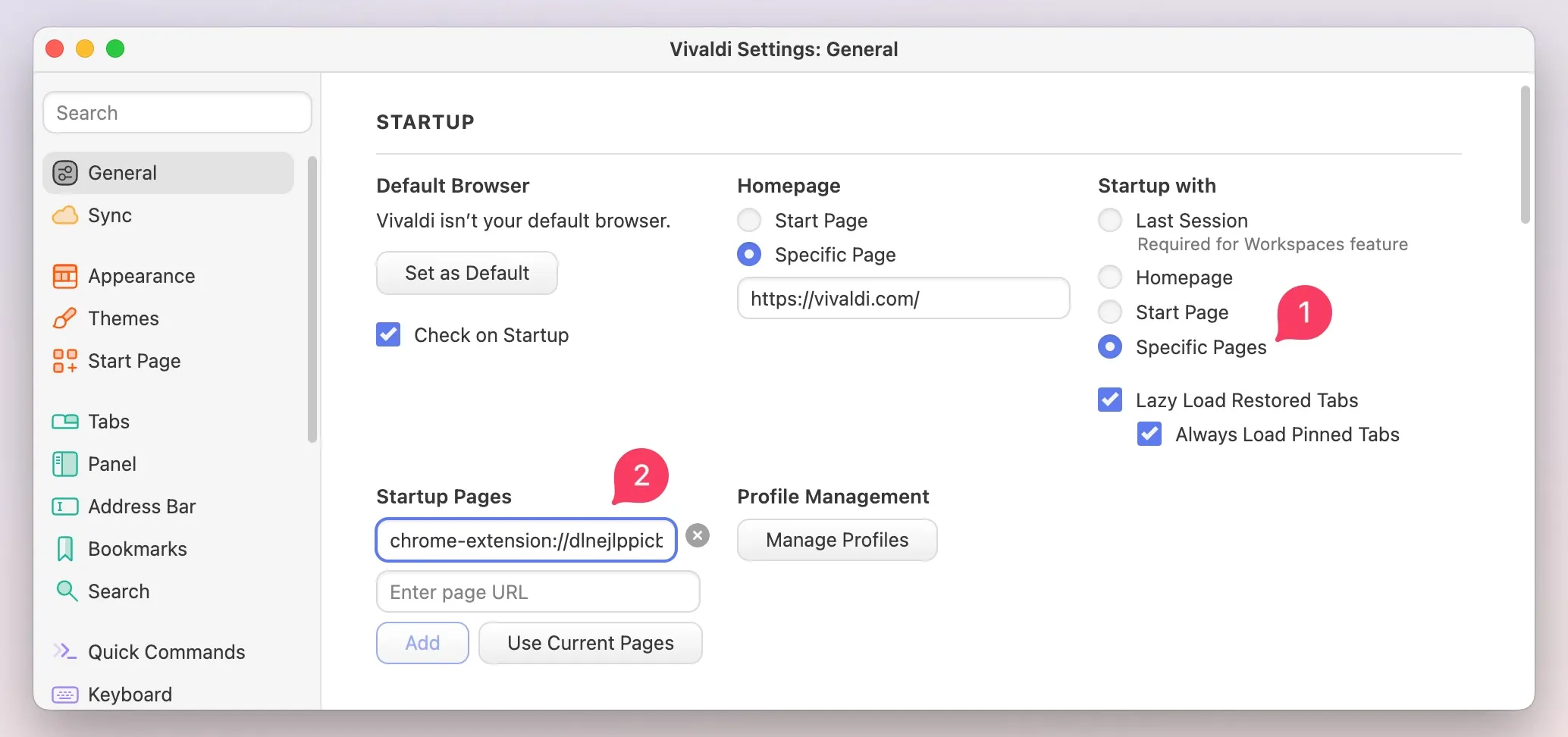
-
Make sure the New Tab Page can be Controlled by Extension:
Tabs tab
Section titled “Tabs tab”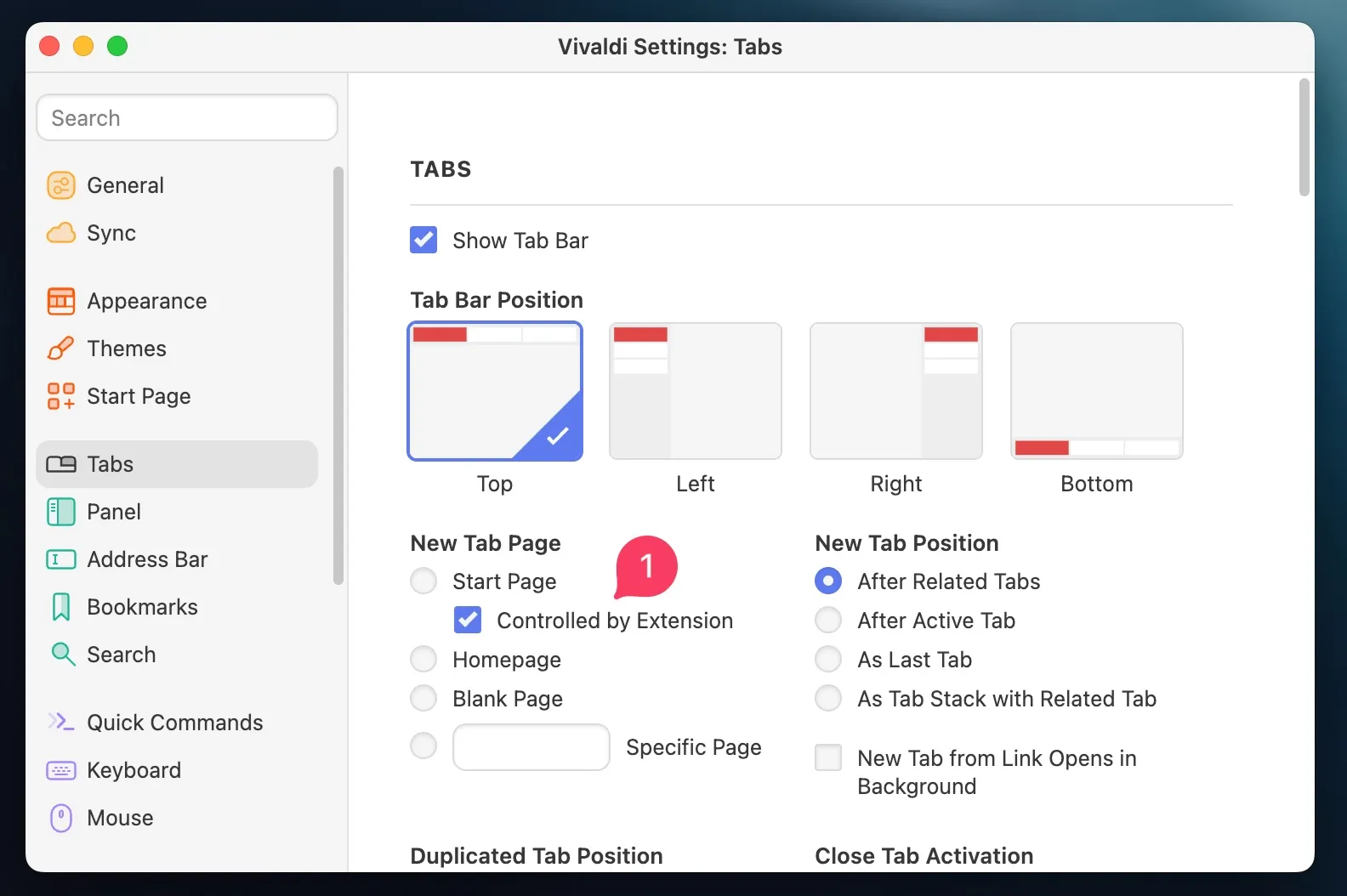
🟡 Opera (and Opera GX)
Section titled “🟡 Opera (and Opera GX)”Opera does not allow extensions to modify its new tab. While there is no official statement, we believe this is because ads on their Speed Dial is a good revenue source for them.
A workaround consists of installing an extension and use the online version of Bonjourr:
-
Empty your current Speed Dial so that it shows a dark blank page.
-
You then need to install a third-party extension that can replace your current active tab. For now, we found that only New Tab Start Page works correctly. We are not affiliated with them.
-
Click on the Bonjourr icon, it should reveal its full URL in the address bar.
-
Set up the third-party extension to
https://online.bonjourr.fr, and we’re done!
🟡 Orion
Section titled “🟡 Orion”While you can install Bonjourr on Orion (either Chrome or Firefox versions work), stability in our experience is hit or miss. This will likely improve with time as Orion gets developed more.
GitHub issue for Orion
Mobile browsers
Section titled “Mobile browsers”New tab page extensions support is not the best on mobile, but there are still some ways to get Bonjourr running on phones and tablets (and smart fridges).
🟡 Safari (iOS and iPadOS)
Section titled “🟡 Safari (iOS and iPadOS)”On iOS and iPadOS, Apple only allows App Store apps to change Safari’s new tab page. Although we don’t have one anymore, there still is a way to use Bonjourr on Safari using the Homepage for Safari open source app.
This app essentially allows you to set any URL as your new tab page in Safari. If you use it to set https://online.bonjourr.fr, then you’ll get Bonjourr.
🟡 Non-Safari browsers on iOS
Section titled “🟡 Non-Safari browsers on iOS”There is no way for non-Safari browsers on iOS to install extensions.
Some of them however (like Firefox) will allow you to set a custom URL for when you open new tabs in which you can set https://online.bonjourr.fr. Even if this is the online version of Bonjourr, its data will be stored in cache which means it’ll still be plenty fast.
❌ Chrome for Android
Section titled “❌ Chrome for Android”The Android version of Chrome is lacking an extension system, which makes it impossible to install Bonjourr.
The only way you were able to install Bonjourr on Android was by using Kiwi Browser, which allowed its users to install regular Chrome extensions on it. This is not possible anymore since Kiwi was discontinued.
❌ Firefox for Android
Section titled “❌ Firefox for Android”Mozilla prevents extensions from editing the startpage on its Android version, which makes Bonjourr impossible to install. As long as they don’t change that, we as developers are unable to do anything.
Another way they could do it is by implementing a custom URL option. That would allow you to use the online version of Bonjourr. You can vote for this on their forum.