Organize and manage your favorite websites with folders, groups, import tools, and custom icons on your new tabs.
Basic usage
Section titled “Basic usage”To add Quick Links, right-click on the page or open the Quick Links section in the settings. They are editable if you right-click on them (or long press on mobile), which allows you to change their titles, URLs, icons and delete them.
You can easily reorder your links through drag and drop, just like you would do on a phone. Additionally, dropping a link on another link will create a folder that contains them both. You can also edit that folder via right-click.
Importing and syncing your links
Section titled “Importing and syncing your links”Bonjourr integrates a way to import the existing bookmarks from your browser. To access it, click the Import button in the Quick Links settings. Depending on your browser, you will be shown multiple groups of importable links such as your most visited websites or your bookmarks toolbars.
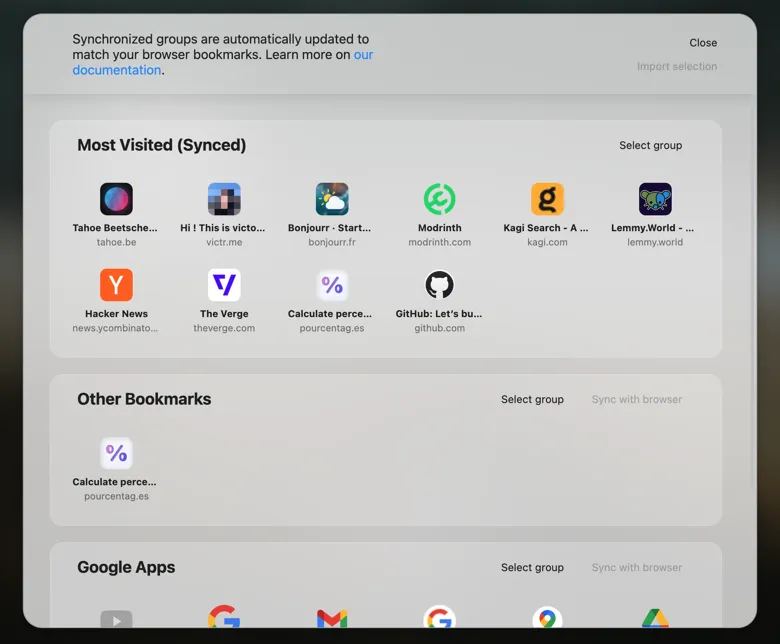
You can select one or multiple groups, and then click Import selection.
Syncing
Section titled “Syncing”Some importable groups, such as bookmarks, can be synced with your browser if you decide to click on Sync with browser before importing. This means they won’t be editable in Bonjourr, but Bonjourr will update its links whenever you edit your bookmarks directly in the browser.
Some groups (like the “Most visited” on Chrome) are only importable while synced and will get updated in Bonjourr whenever your browser decides to do so.
Google Apps
Section titled “Google Apps”If you use Chrome, Bonjourr will offer you to import Google Apps as a way to replicate Chrome’s default startpage’s behaviour.
Link groups
Section titled “Link groups”You can organize your links with link groups, an optional feature you can enable in settings. To add a group, hover to the right of the group titles until you see the + icon. You can rename and delete groups by right-clicking on them. Deleting a group will delete all the links it contains.
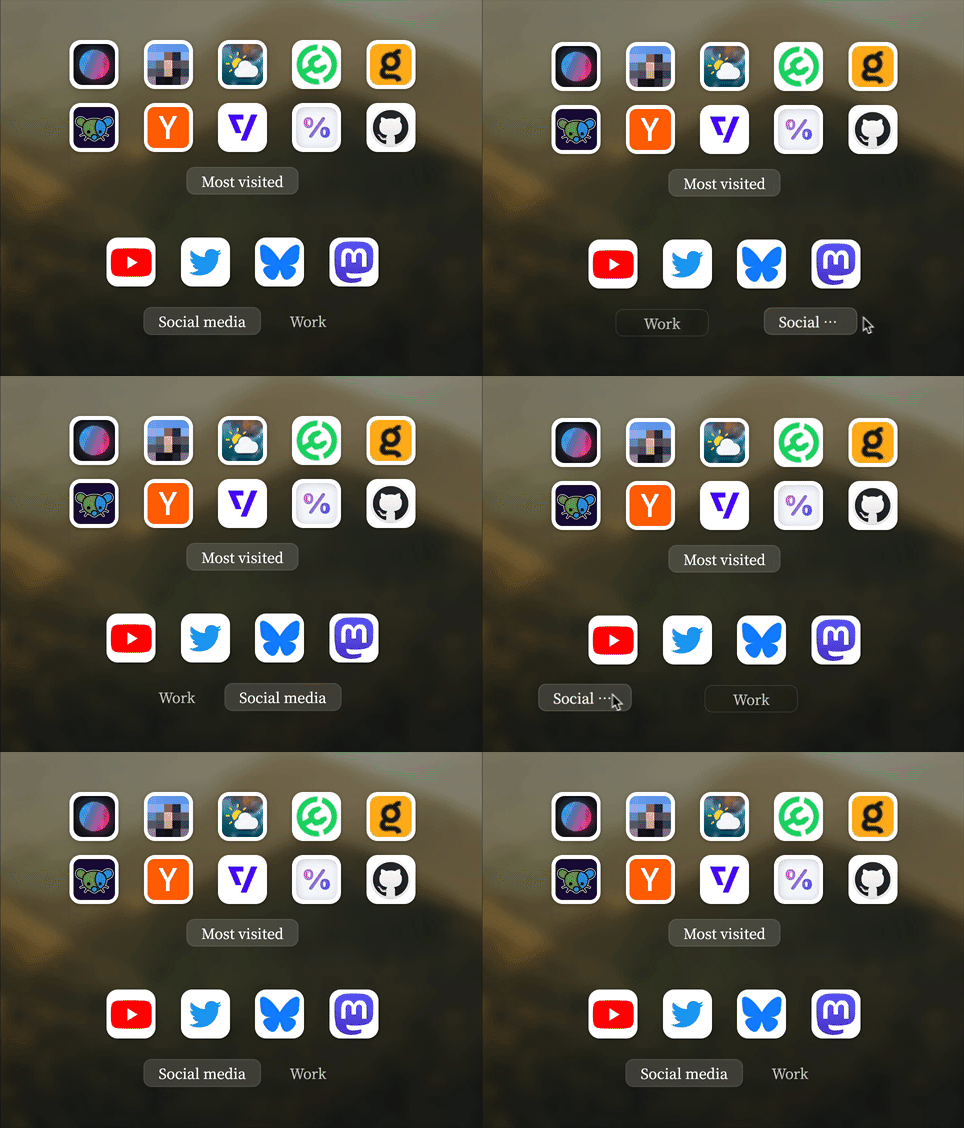
Just like with folders, you can:
- Drag and drop links from group to group.
- Drag and drop groups to reorder them.
- Rename a group by right-clicking it.
You can pin groups by selecting “Pin this group” after opening the context menu from the group title. This will make it so the group is always visible.
Change the look of your links
Section titled “Change the look of your links”You can customise how large and round your links are using the “Icon corner radius” and “Style” options.
Link icons
Section titled “Link icons”You can configure your links’ icons from three different modes.
Website favicon (default)
Section titled “Website favicon (default)”In the default mode, icons are automatically retrieved from our homemade service favicon-fetcher. If you find that a website is missing its icon, you can create an issue on GitHub or send us an email, and we will do our best to fix it.
Local files
Section titled “Local files”Easily customise your link icons by importing them directly from your computer. Most image file formats are allowed, such as JPG, PNG, WebP, (non animated) GIF, and SVG.
Remote URL
Section titled “Remote URL”This mode allows you to set a remote URL to any image file you want on the Internet. This URL can be:
- A remote URL:
https://en.wikipedia.org/favicon.ico. - A locally hosted URL:
http://127.0.0.1:4321/favicon.ico. - A Data URI smaller than 8kb:
data:image/gif;base64,R0lGOD...AA7.
But not a:
- File path:
file:///Users/Me/Pictures/flowers.png.
Cache policy on quick links icons
Section titled “Cache policy on quick links icons”Icons from favicon-fetcher are stored in the browser cache for a year. As long as the browser cache is not cleared, icons are not fetched (or updated) by the page. However, if the browser cache is often cleared or storage space is limited on your device, icons will have to be fetched from our service again.
Icons you add manually from a remote URL will have a different cache policy that we are not in control of, which might cause the icon to be fetched often or even every time.
⚠️ Notice: as a security measure, local paths like file://, browser settings links like about:config or chrome://extensions can’t be added. However, localhost: links will work just fine.