Background info
Section titled “Background info”When using the default backgrounds, hover your mouse on the background credits at the bottom left corner of Bonjourr to get the EXIF info of the photo (when available).

Context menu
Section titled “Context menu”Bonjourr integrates a custom right-click context menu on most of its interface. Use it to add new quick links, access widget settings easily and control the background.
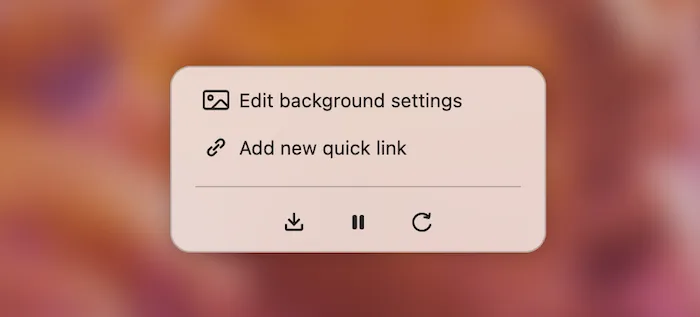
You can override Bonjourr’s context menu to get to the regular one in two ways:
- press alt + right-click,
- have some text selected on the page.
Alt mode
Section titled “Alt mode”
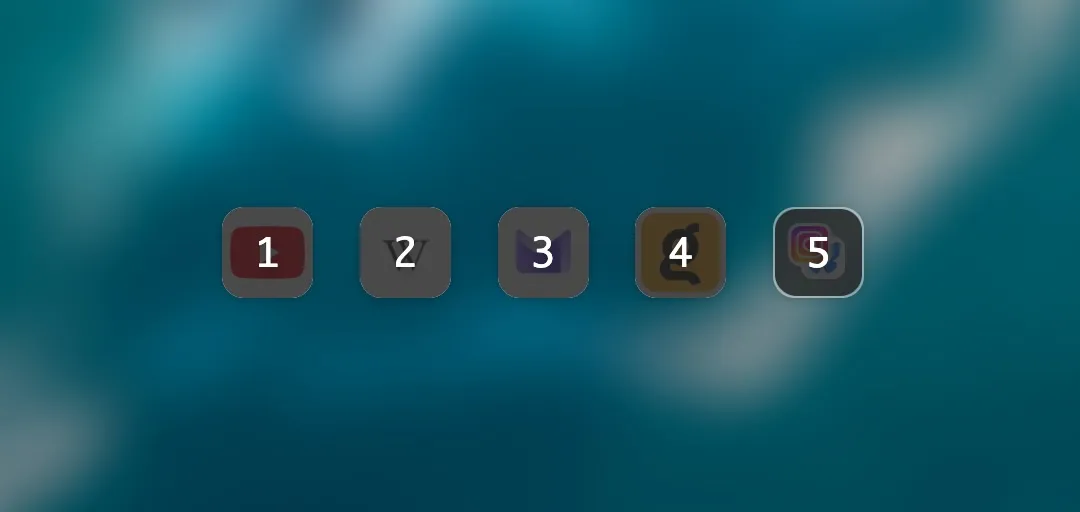
Pressing the alt key in Bonjourr gives you access to useful features such as:
- alt + number to open the corresponding quick link (much like switching browser tabs with cmd / Ctrl + number)
- alt + right-click to override Bonjourr’s context menu and get the native one instead.
- alt + n to create a new quick link.
Advanced settings
Section titled “Advanced settings”Bonjourr 22.3 introduced some advanced settings you can access directly from the JSON area at the bottom of the settings panel. Simply turn them from false to true and apply the changes to enable them.
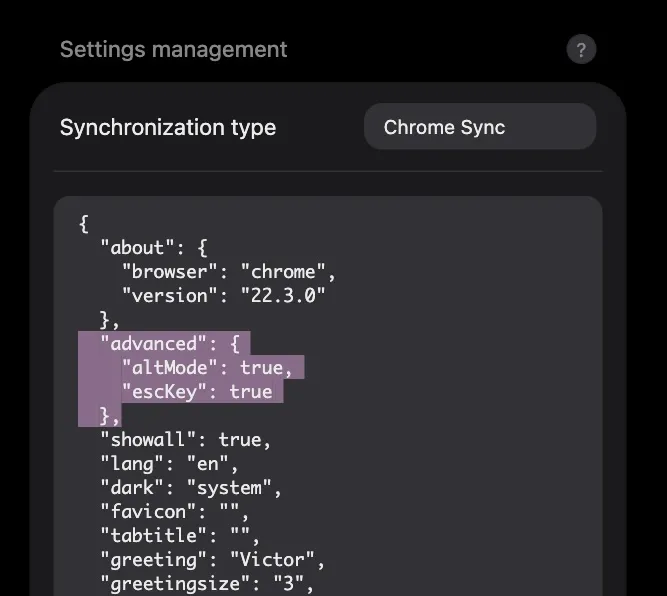
The advanced settings currently include:
altMode: pass it tofalseto disable all features of the Alt mode.escKey: pass it tofalseto disable the ability to open the settings panel with the esc key.
These might be useful in certain workflows that require these keys without Bonjourr’s interferences.
Crashing and Help Mode
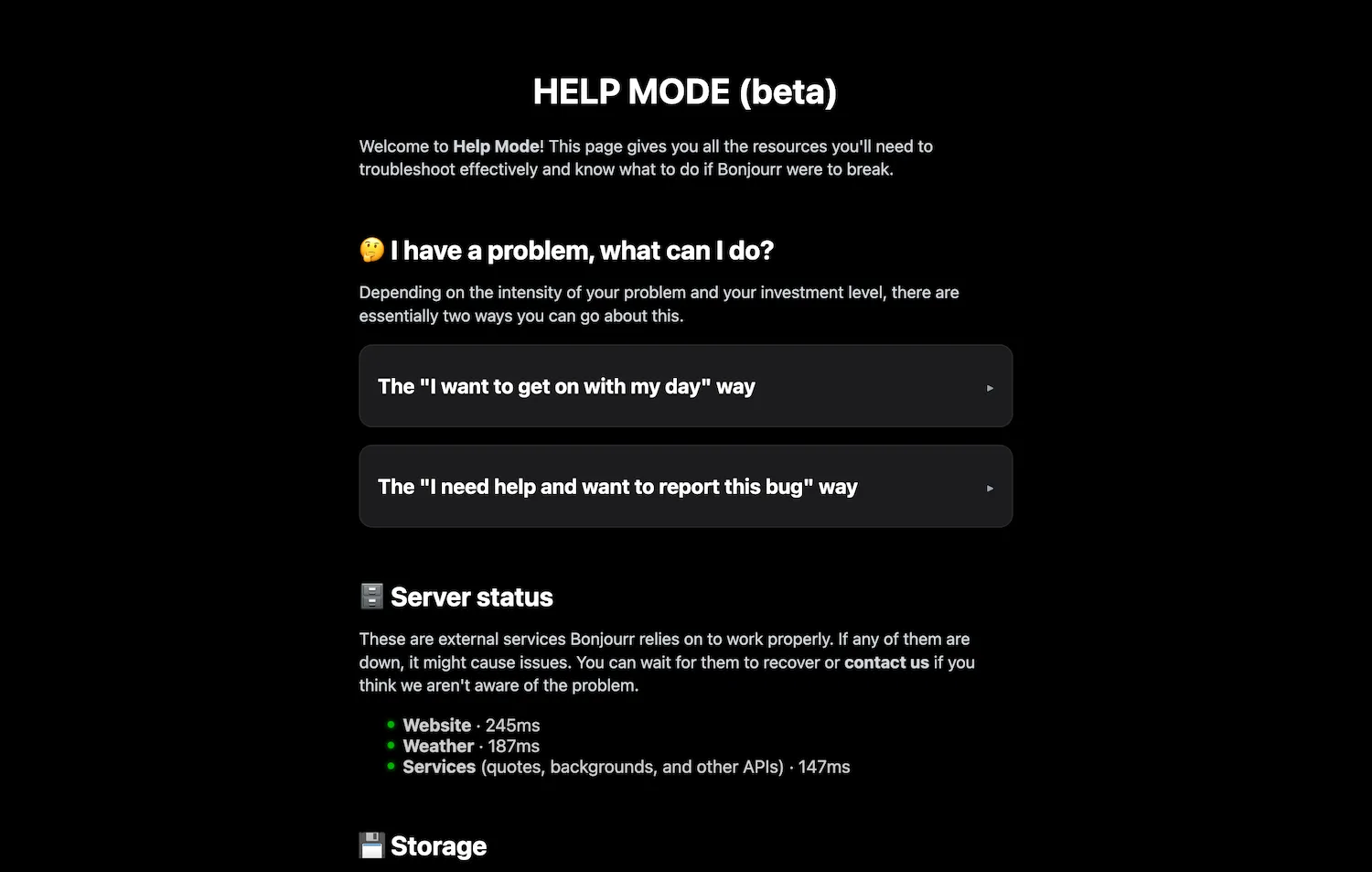
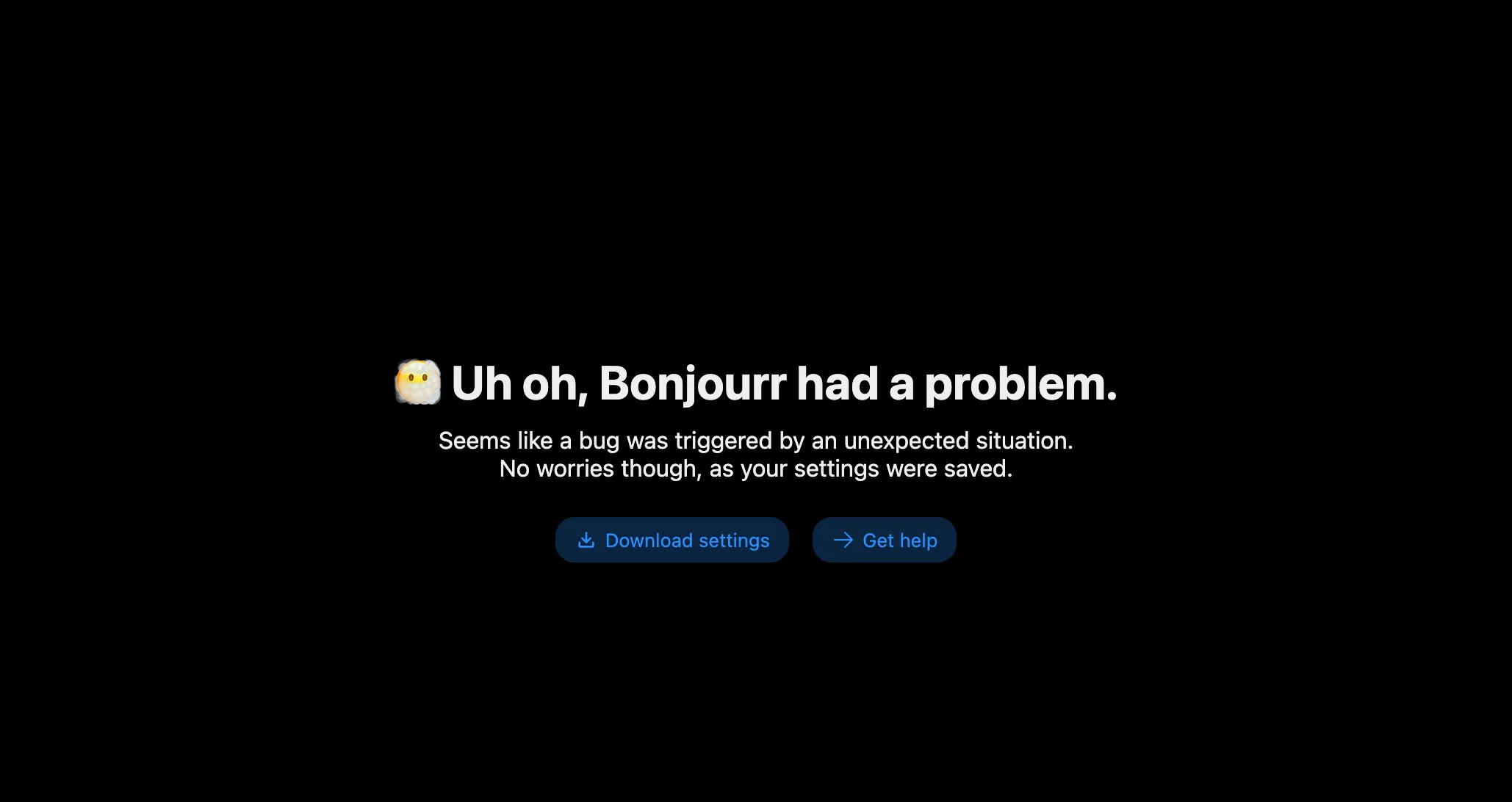
Section titled “Crashing and Help Mode”When Bonjourr crashes, you can click the → Get help button to access Help Mode. It will guide you through troubleshooting and presents valuable information such as Bonjourr’s server statuses and different storage types.
You can also access this page at any time with the cmd/Ctrl + shift + ? keybind.