Syncing your settings means that if you change something in Bonjourr on one instance of a browser, it’ll be replicated automatically in another browser.
Same-browser syncing
Section titled “Same-browser syncing”By default if you’ve installed Bonjourr as an extension, you’ll see that your synchronisation type option matches your browser: Chrome Sync, Firefox Sync or Edge Sync.
This means that if:
- you have Bonjourr installed in the same browser on two computers (for example, Firefox on your laptop + Firefox on your desktop),
- you’re logged in with the same browser account on both browsers,
Then both instances of Bonjourr will have their settings synchronised.
Cross-browser syncing
Section titled “Cross-browser syncing”Bonjourr has two ways to share its settings between multiple browsers.
Github Gist
Section titled “Github Gist”Bonjourr also has a way to synchronise its data across multiple browsers thanks to GitHub Gist (for example, if you use Chrome and Firefox at the same time).
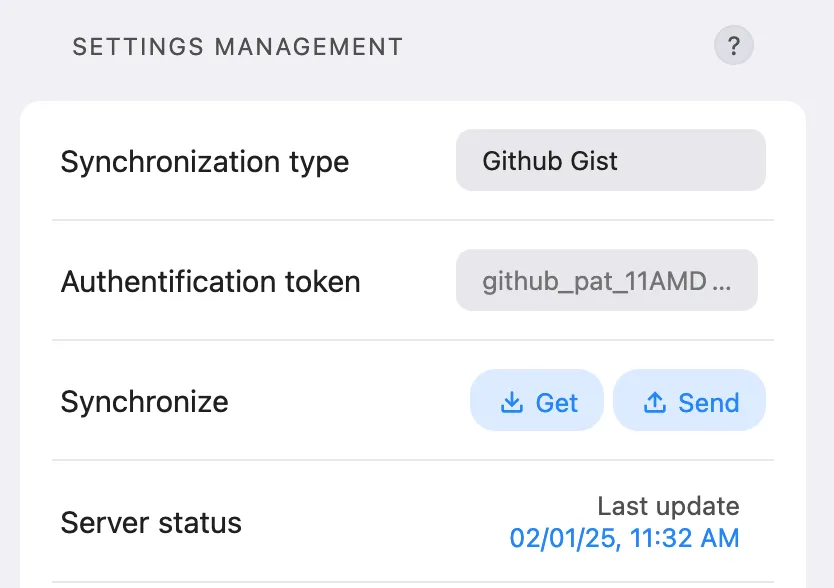
Here’s a step by step guide on how to configure it:
-
Select GitHub Gist in “Synchronization type”
Section titled “Select GitHub Gist in “Synchronization type”” -
Create a Gist token
Section titled “Create a Gist token”Log in to GitHub and create an authentification token by following this guide on docs.github.com, or by following the steps shown below:
-
Paste your token in Bonjourr
Section titled “Paste your token in Bonjourr”Go back to Bonjourr and paste your token in the Authentification token input. Paste that token in as many Bonjourr instances as you need to synchronise.
-
Synchronise!
Section titled “Synchronise!”From there, you can either use the Get button to download your settings from the server, or the Send button to upload them. The Server status area helps you by showing when the last upload was made.
Bonjourr is not affiliated with GitHub, and no connections to api.github.com are made until you select this option AND enter a valid token. More details on our privacy page.
Remote URL
Section titled “Remote URL”This option is the most manual of the bunch, as it requires intervention for the syncing to happen.
It’s essentially the same as importing a settings file from your computer, except you will do it from a remote URL. As it removes the step of having to transfer the settings file to every single device, this could be handy for power users who might need to set up many instances of Bonjourr at once.
Simply host your settings file somewhere (pastebin.com can be a good choice), enter its direct URL in Bonjourr and click the Get button.